You may also want to take a look at the following related posts:
Also don’t forget to subscribe! or be a fan on facebook
This article will help you find the right tools to get exactly the presentation you want. We'll look at three components of creating effective presentations, and provide time-saving tips to help send your presentation off in style:
-
Grab the viewer's attention
-
Clearly communicate your information
-
Stay in control of your presentations
Looking for tips for an earlier version of PowerPoint? Get tips for creating better presentations with Microsoft Office PowerPoint 2003.
Grab the viewer's attention
Creating slides that get the viewer's attention is not about how much you can fit on the screen. It's about using the space on your slides effectively. Don't crowd your slides, and only include elements that contribute to the points you want to make. When you use graphics on a slide, choose images that serve a purpose (such as a chart or diagram that displays a direct benefit of your idea). Compare the two slides below, for example.

Two versions of the same content: The slide on the right uses a simple graphic to replace some of the slide text and makes a much stronger point.
Check out these four ways to help grab and keep your viewer's attention.
1. Select or create your own theme.
Themes are the evolution of design templates in PowerPoint, but they're also much more than that. The themes features was introduced in Microsoft Office 2007 to help you easily create the right look for your presentations and to coordinate all of your Microsoft Office documents almost instantly.
A theme is a coordinated set of fonts, colors, and graphic effects that you can apply to your entire document with just a click. The same themes are available for your Microsoft PowerPoint presentations, Microsoft Word documents, Microsoft Excel workbooks, and even your Microsoft Outlook email messages (and in Office 2010, your Microsoft Access database forms and reports), so it's easy to create your own personal or business branding throughout all of your documents.
In PowerPoint, the theme also includes the slide master and slide layouts, which you will learn more about later in this article, and slide background options.

Five versions of the same slide: It took just one click to apply a theme that changed the fonts, colors, graphic effects, and slide design for each option shown here. Shown clockwise from top are the Office (default), Adjacency, Couture, Newsprint, and Slipstream themes.
When you apply a theme in your presentation, you automatically get slide layouts, color, fonts, and graphic effects that go together, and you can format content with just a few clicks, as you'll see later in this article.
-
Find many built-in themes in the Themes gallery on the Design tab, in theThemes group. Just point to options to preview that theme in your documents. In Office 2010, you also see a selection of themes in this gallery that are automatically updated periodically from Office.com.
-
You can also mix and match a slide design with different theme colors, fonts, and effects to quickly create your own look. Select separate theme color, theme font, and theme effect sets from their respective galleries on the Design tab:

You can even easily create a completely custom theme with your own colors, fonts and slide designs.
Tip: If you change the theme in your presentation and the formatting doesn't change, you may not have used theme-ready formatting when you created your presentation. When you start with a new PowerPoint 2010 or PowerPoint 2007 presentation, theme-ready formatting is automatic for fonts and colors on slide layouts and for Microsoft Office graphics, such as SmartArt graphics, charts, and shapes.
Learn how to customize and save a theme. Note that the link provided is for Office 2010 but also applies to Office 2007.
2. Use video and audio to convey your message more effectively.
Dynamic content, such as a brief video that illustrates an important point, is a great way to engage your audience. Using audio that helps convey your message can also help you keep your slides clean and approachable, such as by adding recorded narration to slides when sending your presentation to others to view on their own.
In PowerPoint 2010, video you insert from your files is now embedded by default, so you don't have to include multiple files when sharing your presentation electronically. You can also customize your embedded videos with easy-to-use tools such as video trim, fades, and effects. And with PowerPoint 2010, you can insert a video that you've uploaded to a website to play directly in your presentation.
3. Use graphics to emphasize key points
A well-chosen chart or diagram can often convey much more to your audience than boring bulleted text. Fortunately, creating charts and graphics has never been easier. In Office 2010 and Office 2007, Office graphics coordinate automatically with the active theme in your presentation.
-
If Excel is installed on your computer, you automatically get the power of Excel charts when you create a chart in PowerPoint. Just click the chart icon on any content placeholder in the PowerPoint presentation to create a chart.

When your chart is created, an Excel worksheet opens where you can add and edit your data. And when you select the chart in your document, you see the Chart Tools Design, Layout, and Format tabs that make it easy to format and edit your chart. Find chart styles on the Design tab that automatically coordinate with your active document theme. Learn more about working with charts:
In PowerPoint 2010
In PowerPoint 2007
SmartArt graphics, introduced in Office 2007, enable you to create a professional-quality diagram literally as easily as typing a bulleted list. You just type in the SmartArt text pane and the diagram is automatically built for you. SmartArt layouts are available for many types of diagrams, ranging from simple lists to process diagrams, organization charts, timelines, and much more.
Click the SmartArt icon on any content placeholder to add a SmartArt graphic.


When you type in the text pane, SmartArt adds your text to the graphic. Press enter to add a new shape or content at the same level, and then press Tab to create a sub-shape or sub-content, such as shown here.
When you select a SmartArt diagram, the SmartArt tools tabs become available on the Ribbon. On the SmartArt Tools Design tab, you can use galleries to select a SmartArt style that coordinates with the effects of your theme and choose from several color options that also coordinate with your theme. You can even select a different SmartArt layout to apply to your active diagram. The layout is updated, but your content and formatting remain. And you can just point to options in any of those galleries to see a preview of your selection on your active graphic before you apply it.
Tips:
-
Convert a bulleted list to a SmartArt graphic with just a few clicks. To do this, right-click in the list, point to Convert to SmartArt, and then point to a layout to see a preview of the diagram on your active slide, or click to apply the layout of your choice.
-
In Office 2010, dozens of additional SmartArt graphics are available, including more organization chart and picture layouts, as well as improved tools for working with picture diagrams.
4. Use animations and transitions wisely.
Having text and graphics appear on-screen just when you need them can be a nice touch. However, using too much animation can distract from your presentation's content.
-
For effects that emphasize your points without overwhelming your audience, limit animation to key points, and use consistent animation choices throughout the presentation.
Customize, preview, and apply animations directly from the Animations tab in PowerPoint 2010. In PowerPoint 2007, find the Custom Animation pane on theAnimations tab.
Tip: Animation effects in PowerPoint 2010 are improved to provide more realistic movement. You can also trigger the animation of an object to begin when you reach a specific point in the playback of audio or video content on your slide.
-
Consistent or complementary choices in slide transitions can also provide a professional touch without being distracting.
Customize, preview, and apply transitions from the Transitions tab in PowerPoint 2010 or the Animations tab in PowerPoint 2007.

PowerPoint 2010 adds several new 3-D slide transitions with stunning visual effects, such as the gallery transition shown here.
Learn about working with animations and transitions:
In PowerPoint 2010
In PowerPoint 2007
Clearly communicate your information
Want slides that clearly communicate your most important points? You might be surprised at how little work it takes to go from basic to brilliant. PowerPoint provides a host of tools for keeping your slides consistent, precise, and professional.
Take a look at two versions of a basic bulleted text slide below. The text in both slides is identical. Which would you prefer to present?

Two versions of the same content: The version on the right uses the slide master and layout formatting in the presentation theme for a more organized, readable slide.
5. Start by outlining your presentation.
Take time to outline your presentation before you begin to create your slides. Doing so can save time and help you give a more clear and effective presentation.
You can create your outline by typing a slide title and bullets points for your main topics on each slide. But you can also use the Outline pane to type your entire presentation outline in one window and add slides to your presentation as you go. To do this:
-
In the Slides pane that appears on the left of your PowerPoint screen in Normal view, click the Outline tab. (If you don't see the Slides pane, on the View tab, click Normal.)
-
Notice that a slide number and icon appears for your first slide. Type a title for the slide and then press ENTER to create your next slide.
-
Press TAB to demote the text level and add points to the current slide in your outline. Or press SHIFT+TAB to promote the text level and add an additional slide.

The Outline pane is available in both PowerPoint 2010 (shown here) and PowerPoint 2007.
Tip: PowerPoint 2010 adds a new feature called slide sections that enables you to divide your presentations into logical sections for easier organization, such as to assign a set of slides to one author or to easily print just one section of slides. Learn about working with slide sections.
6. Use masters and layouts to save time and get better results.
The slide master is one of the most important tools in PowerPoint for creating easy-to-use, great-looking presentations. The master gives you a central place to add content and formatting that you want to appear on all (or most) of your slides. Formatting and layout that you do on the slide master automatically updates throughout the slide layouts in your presentation, saving you a tremendous amount of time and effort, and helping to keep your slides consistent. For example, place your logo on the slide master, and it will appear on all slides in the presentation.
-
A slide master includes a set of slide layouts for different types of content. Nine slide layouts are available by default in the Layout gallery on the Home tab, and they are formatted based on the slide master. You can customize any of these layouts individually and create your own custom slide layouts as well.

The Layout gallery displays the name of the active theme at the top and provides thumbnails of each available slide layout. When you add custom layouts to your presentation, those appear in this gallery as well.
-
If you just need a single slide that doesn't fit an existing slide layout and won't need to be reused, you can use the Title Only or Blank slide layout and do your own thing right on the slide. But if you will reuse a layout for multiple slides in the same (or another) presentation, create or customize a slide layout to avoid doing the same work multiple times and to keep your slides looking professional and consistent.
To access the slide master, on the View tab, click Slide Master.
Learn to create or customize the slide master:
In PowerPoint 2010
In PowerPoint 2007
Tips:
-
To hide graphics that you place on the master for just one slide, on the Designtab, in the Background group, click Hide Background Graphics.
-
Masters are also available for formatting notes pages and handouts. Find these options on the View tab.
7. Consider differences between print and on-screen presentations.
Presentations designed to be viewed on screen don't always work well when you print them. Dark backgrounds that look good on slides, for example, rarely print well. Similarly, footer content that you need in print is likely to be distracting on-screen. Fortunately, PowerPoint makes it easy to switch between print and screen presentation options. Here are two features that can help:
-
When you format your presentation using a theme, slide master, and layouts, as described earlier in this article, you can change from a light background to a dark background in just a click, and text on your slides automatically changes color to be visible on the new background. Find the slide background gallery on theDesign tab, in the Background group.
-
To quickly show or hide footer, page number, and date content on all slides at once, on the Insert tab, click Header & Footer. In the Header and Footer dialog box, you can select the options to display them on screen or clear selections to hide content, and then click Apply to All. (Note that if you remove the footer, page number, or date placeholder on any slide, the slide will not display this content even if you turn it on in this dialog box.)

8. Use notes pages and handouts to help deliver the story.
Use the Notes pane that appears below the slide in Normal view to write notes to yourself for your presentation or to create notes that you can print for your viewers instead of crowding your slides with too much text. You can also format and print handouts that contain up to nine slides per page.
Create and print notes pages:
In PowerPoint 2010
In PowerPoint 2007
Create and print handouts:
In PowerPoint 2010
In PowerPoint 2007
Stay in control of your presentations
Custom colors, layouts, and graphics can do a lot for your presentation. But a misaligned flowchart, or a presentation that crashes on your client's computer, isn't likely to make the impression you want. For example, take a look at the two timeline graphic images below.

Two versions of the same content: Nudging and fussing to create the graphic on the left took about an hour, and it's far from perfect. Using available PowerPoint tools, it took just a few minutes to create the flawless diagram on the right.
9. Keep file size manageable.
A common cause of stress when you work in PowerPoint is that the file becomes too large to edit or for the presentation to run smoothly. Fortunately, this problem is easy to avoid by compressing the media in your files and using native PowerPoint features whenever possible (such as tables, charts, SmartArt graphics, and shapes) instead of importing and embedding objects from other programs.
Learn about compressing pictures in your presentations:
In PowerPoint 2010
In PowerPoint 2007
Tip: PowerPoint 2010 gives you the ability to compress the embedded video and audio files in your presentation as well. Learn about compressing media.
10. Use the tools available to get it right the first time.
You've already seen in this article that you can use features like slide layouts to quickly create consistent slides. Or use tools such as SmartArt graphics to create a professional-quality graphic in no-time. But when you need to do your own thing—and that thing doesn't belong on a slide layout or fit an available graphic style—PowerPoint still provides tools to save you time and improve your results.
11. Turn off (or manage) AutoCorrect layout options.
PowerPoint provides several automatic formatting options to help your slides conform to the provided layouts. They can be big time-savers, but they can also be frustrating if you're not using them intentionally and they cause formatting (such as the font size in slide titles) to become inconsistent from one slide to the next. If you don't want your text to shrink automatically to fit content, you can easily disable those features in the AutoCorrect Options dialog box.
-
In PowerPoint 2010, click the File tab to open Backstage view, and then clickOptions. In PowerPoint 2007, click the Microsoft Office button and then clickPowerPoint Options.
-
On the Proofing tab, click AutoCorrect Options.
-
On the AutoFormat As You Type tab, clear the AutoFit title text to placeholders and AutoFit body text to placeholders check boxes.
12. Know exactly what your viewers will see.
When you want to be sure that what you send is what viewers see, you can save the presentation in the PowerPoint slide show format, so that the show starts for the recipients as soon as they open the file. But, some variables, such as whether media will play correctly on the recipient's computer, may still affect what viewers see.
PowerPoint 2010 introduces a new feature that makes it easy to share your presentation perfectly with almost anyone, anywhere. You can now create a high-quality video of your presentation, complete with your saved narration and timings, in just a few clicks. PowerPoint creates the video in the background while you keep working. Learn how to create a video of your presentation.
You may also want to take a look at the following related posts:
Also don’t forget to subscribe! or be a fan on facebook


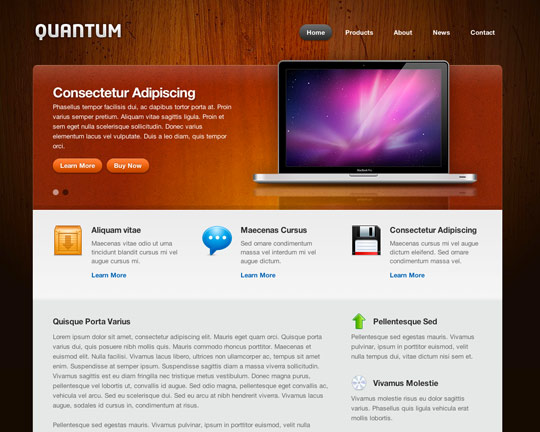
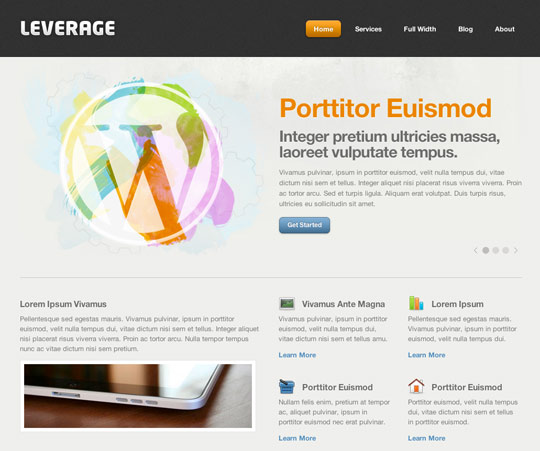
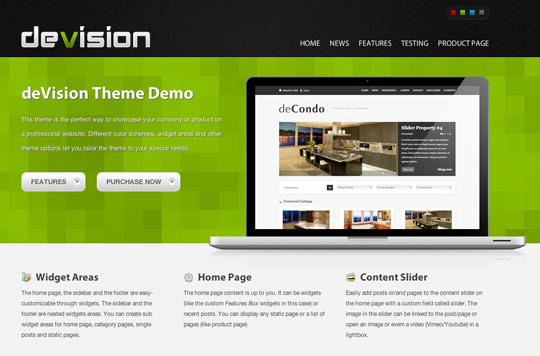

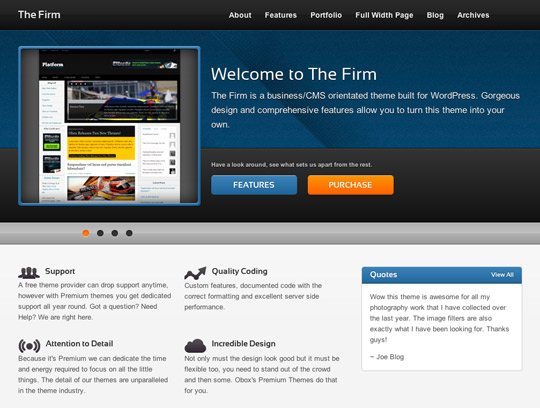
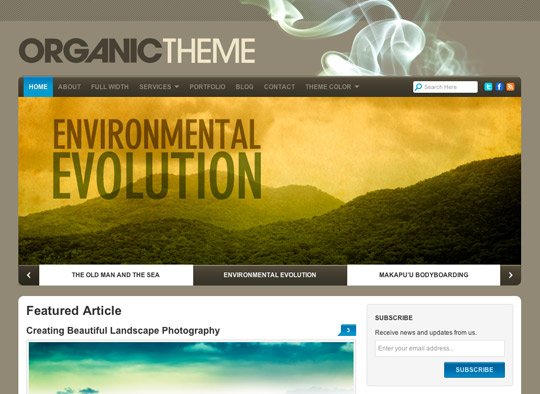


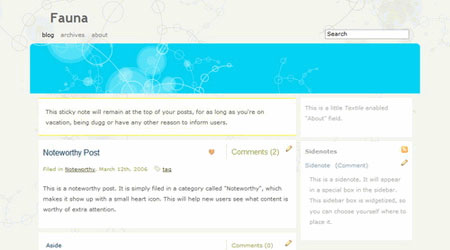
 Simply Beautiful Graphic Design Wordpress Theme Download Free ? The simple act of “Change” can give a new look, meaning and perspective to anything in the world. The same theory goes for our blogs. A personal blog reflects our identity on the Internet, so that’s why I believe that it is a must for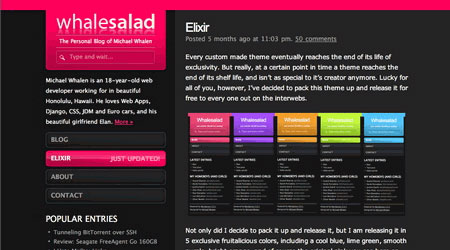


 Tips for creating better presentations find a


