
Showing posts with label Photoshop Tutorials. Show all posts

Friday, February 18, 2011

Create a portfolio in business website layout (Photoshop – Template)

0 comments

How to Make a Persuasive Business PortfolioHow To Find Your Dream Job? A business portfolio is all about what your business encompasses. A presentable business portfolio should be the culmination of all the planning parts that were considered while starting a new business. It is a dynamic opportunity for the employers to depict what is your business, what are your capabilities and what you can achieve in future. Now, how to make it the portfolio as website ? This post will create a portfolio/presentation or if you’d like a business Photoshop template (psd template)

As you usual, to design this website we will gonna use some vector elements from our Supreme Vector Set

Full Preview:

psd4 

Note: Some steps dose require to  have Supreme Set in order to achieve the same result.

Let’s start it.

Step 1

Open Photoshop and create a new document (Ctrl+N) with this dimensions  1024 pixels by 1200pixels. As a background color I have chosen white (#FFFFFF)

1

Creating top header

Step 2

Select rectangle tool and create a similar shape. I have used this color: # 164268. Mine has the following dimensions: 1024px by 84px

2

Step 3

Select rectangle tool and create another shape, below the shape created at step 2. I am using this color: # 08effd. My shape has the following dimensions: 1024px by 185px

3

Step 4

Select again rectangle tool and create another shape on the top of the shape created at step 3. I have used this color: # 266088

When you create this shape, don’t cover the entire shape created on step 3, leave 1px distance between those 2 shape. I have made this to create a nice stroke on the top of this shape. Please see the screenshot below.

Then Select Type Tool (T) and add a text on the shape created on step 2. This will be published latest news from the website or from a social network website.

5

Step 5

Next I will add some links using the Type Tool (T) on the top right side.

7

Step 6

Select Rounded Rectangle Tool, and create a shape above the About link, please see the screenshot. I have used  this color: #315a7d

8

Creating the logo and header

Step 7

For logo- the text -ArtBox7.com -  I have used    “MoolBoran” font – size 48px – with the following layer styles:

9

10

Here’s my result

11

Step 8

From Supreme Vector Set (more exactly from Retro/Funky Tree Vector Pack) I will add a nice tree to use it as a logo.

13

Creating the navigation

Step 9

Select Rectangle Tool and create a similar shape:

14

Step 10

Having Rectangle Tool selected, create another shape below shape created on step 10. I have used this color: #c6ff00

Step 11

Select again rectangle tool and create another shape on the top of the shape created at step 11. I have used this color: # 8dc63f

15

When you create this shape, don’t cover the entire shape created on step 11, leave 1px distance between those 2 shape. I have made this to create a nice stroke.

16

Step 12

Next using the Type Tool (T) I will add some links on the navigation bar. Now If you will analyze a little bit the top header, you will see that is a quite empty. Something needs to be added to make it more attractive.

Going back to the Header

Step 13

From Supreme Vector Set I will select Abstract Curve Vector Pack and I will add an vector element to Photoshop

18

Step 14

Next I will add an image, on the right side, please see the screenshot

19

Step 15

I will select Rectangle Tool and I will create a shape. I will rotate a little bit this shape and I will place it behind the image added on step 14

20

Step 16

I will select again rectangle tool, but this time I will rotate the shape in opposite direction

21

Step 17

Ellipse Tool and create a similar shape. Choose #FFFFFF for background

26

Step 18

Go to Filter>Blur>Gaussian Blur

27

Step 19

Here choose 78.6 for Radios

25

My result:

28

Now the header looks really nice, don’t you think :P ? Let’s get back to navigation now

Step 20

Select rectangle tool and add another shape (below shape created on step 11)

29

Step 21

Apply the following layer styles to the shape created on steep 20

23

24

Step 22

Creating the content area

The content area is quite easy to create. You will need to use Type Tool (T) to add text and some  vectors from our Supreme Vector Set.

Here’s the screenshot:

32

Step 23

Creating the footer

Select Rectangle Tool and create a shape with this color: # bd7327

34

Step 24

Above this shape (created on step 22), create another one using this color # 875725
When you create this shape, don’t cover the entire shape created on step 21, leave 1px distance between those two shapes. I have made this to create a nice stroke on the top of this shape. Please see the screenshot below:

35

Step 25

Now from Supreme Vector Set (more exactly from Retro/Funky Tree Vector Pack) I will add an vector element

36

Step 26

Than using the type tool I will add a copywrite text.
Here’s the final result:

psd4

The tutorial is finished now.  Thanks for watching and don’t forget to bookmark this website!

Next I will add some links using the Type Tool (T) on the top right side.

Download here | Download all templates

This tutorial was originally created by artbox7.com

Once you have a portfolio, you may also want to learn about ...

  1. How To Create A Master Resume
  2. How To Get Called For Interviews
  3. How To Find Your Dream Job
  4. How To Create An Awesome Work Portfolio
  5. How to Make a Persuasive Business Portfolio
Continue Reading

Thursday, January 20, 2011

E-Book Ebook Photoshop

0 comments

Kumpulan Ebook Photoshop untuk pemula segala versi photoshop. Photoshop 7 Photoshop CS Photoshop CS2 Photoshop CS3 Photoshop Cs4 Photoshop Cs5 dan mungkin akan berlaku pada photoshop CS6 juga. Kita tahu bahwa versi photoshop 7 ke atas mempunyai fungsi dan feature yang hampir mirip sehingga tutorial biosa saja dipakai untuk versi lama ataupun baru. Meski tidak dipungkiri bahwa beberapa versi tutorial akan membutuhkan tutorial terbaru, namun pada artikel ini kita bisa menggunakan versi photoshop 7 ke atas.
1. False Color Effect in Photoshop


Download

2. Tutorial Photoshop – Frame Fokus


Download E book | Download Source

3. Merubah Foto Gelap Menjadi Lebih Soft dan Terang


Download E book

4. Cara Membuat Cover Ebook 3D


Download E book

5. Mengedit Photo Formal


Download E book

6. Easter Egg Photoshop CS3


Download E book

7. Membuat Box Bola Billyard


Download E book

8. Fitur-Fitur Baru dari Photosop CS4


Download E book

9. Membuat Efek Bayangan


Download E book

10. Setting Pas Photo


Download E book

Mungkin Anda akan tertarik dengan ebook berikut :

Continue Reading

Thursday, December 2, 2010

Most Beautifull Photoshop Photo Effects [Photoshop Tutorials]

0 comments

Most Beautifull Photoshop Photo Effects Most Beautifull Photoshop Photo Effects [Photoshop Tutorials]. Looking at how powerful Photoshop can be in terms of photo editing, it’s probably not important if you suck at taking photographs or being labeled an amateur photographer. As long as you picked up a couple of Photoshop photo editing skills, it will still impress those who sees it. Best Photoshop Effects We all know Photoshop is a very powerful tool to create spectacular effects, however, the software requires you spend much time to create a design.

Most Beautifull Photoshop Photo Effects
So the next time you want to publish some photos online, consider editing them so they look more impressive. Here’s a compilation of 41 Nicest Photoshop Photo Effects you can take into reference. Full content after jump.

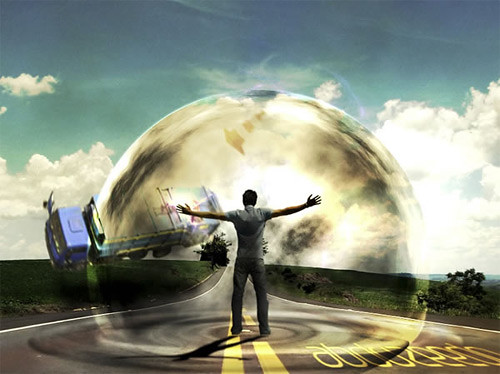
  1. Mental Wave Explosion Effect
    How to create a crazy explosion, like a mix of Magneto’s ability with Peter Petrelli’s power.
    Most Beautifull Photoshop Photo Effects
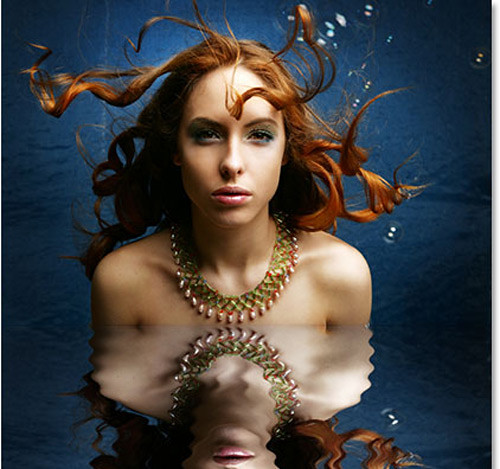
  2. Realistic Water Reflection
    How to easily add a realistic water reflection to any photo.
    Most Beautifull Photoshop Photo Effects
  3. Displacement effects
    How to use a variety of filters and techniques to produce an image in an experimental style.
    Most Beautifull Photoshop Photo Effects
  4. Make Photos More Suggestive
    Learn how to make the model in this tutorial more suggestive with awesome curves
    Most Beautifull Photoshop Photo Effects
  5. Halftone Dots and Linear Light
    A very cool linear light halftone dot effect in less than 2 minutes.
    Most Beautifull Photoshop Photo Effects
  6. Retro Comic Book Effect
    Creating a old comic book effect for your photos.
    Most Beautifull Photoshop Photo Effects
  7. Add Realistic Rainbow To A Photo
    Easily add a rainbow, even a double rainbow, to a photo.
    Most Beautifull Photoshop Photo Effects
  8. How To Make Digital Photos Look Like Lomo Photography
    Take a digital photo and make it Lomoified
    Most Beautifull Photoshop Photo Effects
  9. Creating a Rocking Silhouette
    How to create a silhouette of a person taken from a normal photo, adding colorful light to it as if the light source is located behind this object.
    Most Beautifull Photoshop Photo Effects
  10. Adding Reflections To Sunglasses
    How to add reflections, or at least, different reflections, to sunglasses.
    Most Beautifull Photoshop Photo Effects
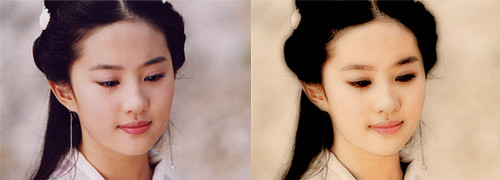
  11. Age Progression
    Go about aging a woman’s face in Photoshop.
    Most Beautifull Photoshop Photo Effects
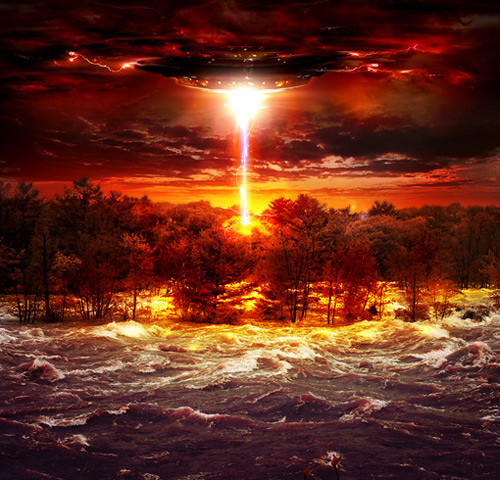
  12. Alien Invasion
    Most Beautifull Photoshop Photo Effects
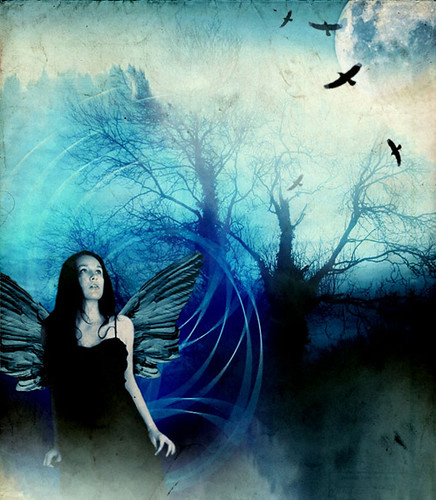
  13. Dark Art Picture Style
    How to combine some stocks and Photoshop techniques to make an amazing dark art picture style.
    Most Beautifull Photoshop Photo Effects
  14. Bringing a Stone Statue to Life
    How to take a stone statue and alter it to look life-like.
    Most Beautifull Photoshop Photo Effects
  15. Changing Hair Color
    Most Beautifull Photoshop Photo Effects
  16. Photo Edit Color Effects
    Most Beautifull Photoshop Photo Effects
  17. Add Another Dimension
    Create stunning effects using glows.
    Most Beautifull Photoshop Photo Effects
  18. Crack and Peel
    Most Beautifull Photoshop Photo Effects
  19. Cool Halftone Effect
    How to create halftone patterns and creatively cut up an image of a model holding a boombox.
    Most Beautifull Photoshop Photo Effects
  20. Creating Energy Spheres
    Most Beautifull Photoshop Photo Effects
  21. Devil’s Eyes
    How to make eyes look more sinister
    Most Beautifull Photoshop Photo Effects
  22. Dynamic Lightning
    How to spice up a fairly dull and flat photograph.
    Most Beautifull Photoshop Photo Effects
  23. Eery-Eye Photo Manipulation
    Most Beautifull Photoshop Photo Effects
  24. Expressive lighting effects
    How to go about combining several lighting techniques
    Most Beautifull Photoshop Photo Effects
  25. Fantasy Art
    Most Beautifull Photoshop Photo Effects
  26. Fiery Photoshop Space Explosion
    Creating a spectacular space scene featuring two planets colliding.
    Most Beautifull Photoshop Photo Effects
  27. Color Hair Locks
    Getting the hair colored in just few minutes.
    Most Beautifull Photoshop Photo Effects
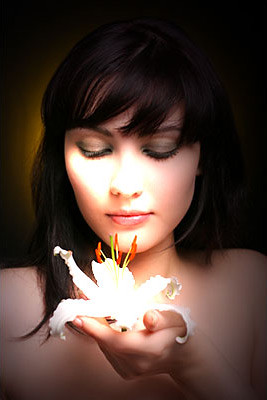
  28. Beautiful Lady Effect
    Most Beautifull Photoshop Photo Effects
  29. How to turn your photo into movie-like effect
    Most Beautifull Photoshop Photo Effects
  30. Mosaic, Fill A Photo With Photos
    Create a bit of an optical illusion, filling one photo with many smaller photos, or at least, many copies of a couple of smaller photos.
    Most Beautifull Photoshop Photo Effects
  31. Photoshop Effects: Focus With Light
    How to add focus to an image with light, using Photoshop’s Lighting Effects filter and multiple light sources.
    Most Beautifull Photoshop Photo Effects
  32. Zombie
    Turning Mandy Moore or anyone into zombie.
    Most Beautifull Photoshop Photo Effects
  33. Super Slick Dusky Lighting Effects
    Put together a sunset image mixing some vector shapes and dusky lighting effects to produce a slick image that would make a nice album cover for a chillout mix!
    Most Beautifull Photoshop Photo Effects
  34. Transform a person into an alien
    How to create a very cool looking alien using Adobe Photoshop
    Most Beautifull Photoshop Photo Effects
  35. Seriously Cool Photoshop Explosion Effect
    How to break apart a body, then add some awesome lighting and glow, and nopattern style, to finish the image off.
    Most Beautifull Photoshop Photo Effects
  36. Reflective Bubble
    Most Beautifull Photoshop Photo Effects
  37. How to Make Circle Pixels (Pop-art Style)
    Most Beautifull Photoshop Photo Effects
  38. Easy Watercolor Painting Effect
    How to easily make a photo look more like a watercolor painting.
    Most Beautifull Photoshop Photo Effects
  39. Watercolor Effect
    Most Beautifull Photoshop Photo Effects
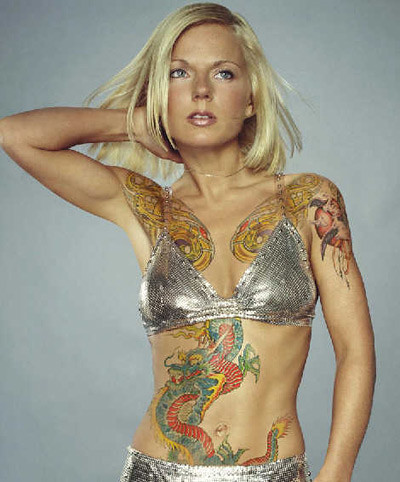
  40. Realistic Tattoos
    This tutorial uses a few basic photoshop techniques, masking, color adjustment, liquify and the resize and transformation tools.
    Most Beautifull Photoshop Photo Effects
  41. Robotic Frog
    How to take a regular frog and opened him up to reveal a mechanical skeleton.
    Most Beautifull Photoshop Photo Effects
I added the best photoshop drawing tutorials, text effects in sexy model with glowing bubbles effect Photoshop Tutorials Best of 2009. Nicest Photoshop Photo Effects [Photoshop Tutorials] (tags: art best design digital graphics effects howto inspiration photos photography Nicest Photoshop Photo Effects, Part II22 Best Photoshop Here is a look at some of the best tutorials for using various lighting These photos are great even with or without photoshop effects
Adobe photoshop is a very powerful media for making photo effect. This time, psd-tutorial.com will feature 18 best photoshop effect tutorial 60 Most Wanted Photoshop Tutorials, Brushes, .PSDs and Resources ... These 50 incredible Photoshop effects will create text that explodes from the All of the Best Photoshop Tutorials Around the World saved in One Place
Continue Reading


Copyright 2010 All Rights Reserved | Super Template by Ilmu Komputer | Modified by Ilmu Grafis | Original Wordpress theme by Ahli Desain